How to add custom emotes to Twitch and Discord
Custom emotes give your chat its own language. This guide covers uploading them to Twitch and adding them to a Discord server.
Twitch
Who can upload emotes
Custom emotes are available to Twitch Affiliates and Partners. You'll find your emote slots in the Creator Dashboard.
Sizes and files
- Twitch shows emotes at 112 × 112, 56 × 56 and 28 × 28 px.
- Use transparent PNG files, or GIF for animated emotes.
- Twitch shows the current file-size limit on the upload screen. Our emotes are made to fit within it.
Upload them
- Go to your Creator Dashboard → Viewer Rewards → Emotes.
- Choose where the emote goes: a subscriber tier or follower emotes.
- Upload the image. With a simple upload you add one large square image and Twitch makes the smaller sizes. With an advanced upload you add each size yourself. Our packs include all three.
- Type the emote's name. Twitch adds your channel prefix in front of it.
- Save. New emotes can take a little while to appear in chat.
Discord
- Open your server and go to Server Settings → Emoji.
- Click Upload Emoji and choose a PNG. Larger sizes from our packs (such as 112 or 128 px) look best.
- Give it a name. Everyone in the server can now use it with
:name:.
Discord limits how many emoji a server can have and how big each file can be. Server boosts unlock more slots.
Tips for great emotes
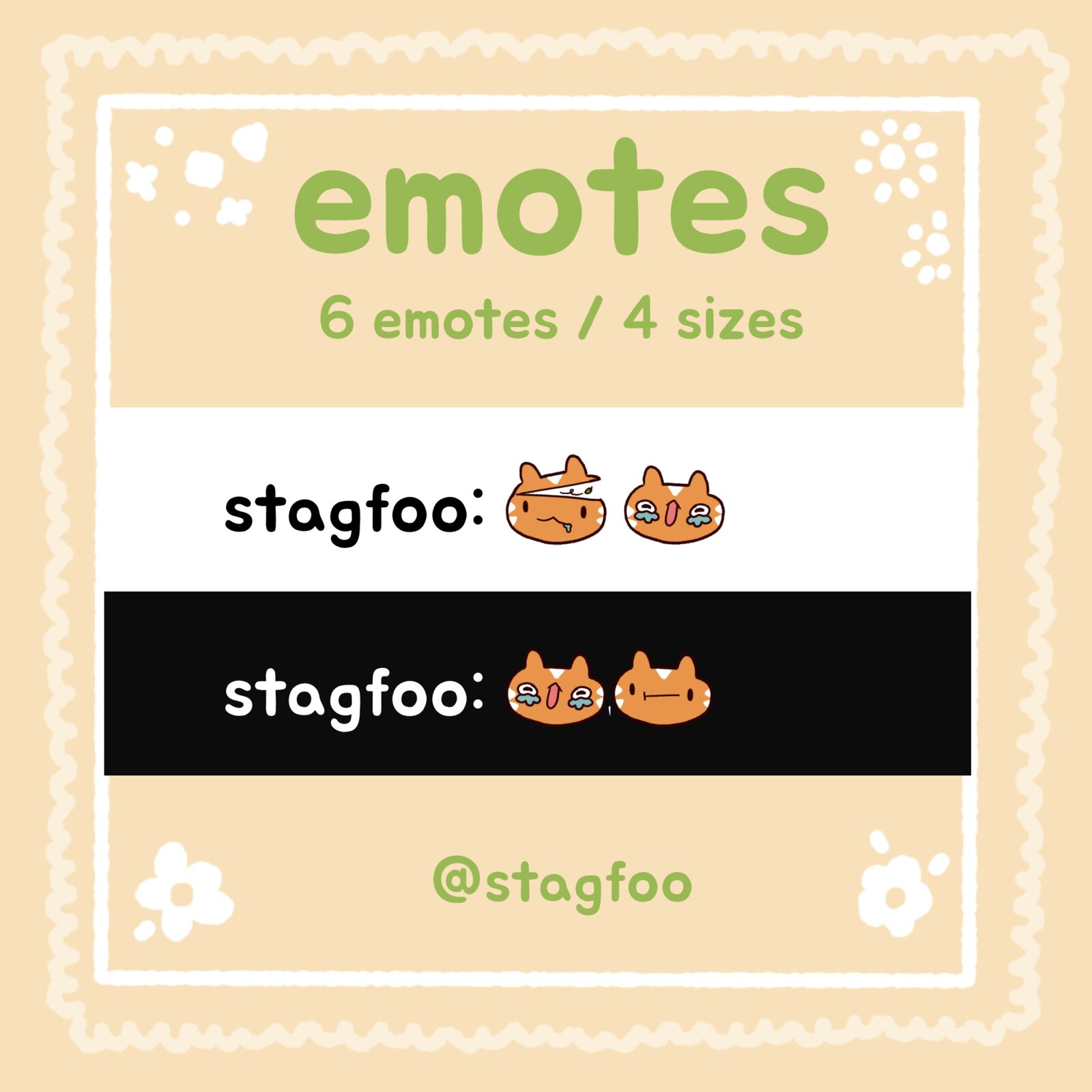
- Check the 28 px size: that's how most people see emotes in chat. Bold outlines and big expressions read best.
- Make a set: emotes that match your PNGtuber help your channel feel like one brand.
Still stuck? Message me on Ko-fi.